Introduction
Connecting Microsoft Dynamics 365 HR or Microsoft Entra ID HR data to third-party applications isn't plug-and-play. It requires Azure AD app registration, careful permission scoping, and either Dataverse or OData/DMF configuration—making it unsuitable for non-technical teams without developer or IT admin support.
When configuration goes wrong, the problems compound fast. Common failure points include:
- Authentication failures from misconfigured app permissions
- Incomplete data pulls caused by targeting the wrong Dataverse entities
- Ongoing sync failures from poorly mapped fields
Each creates downstream data quality issues in dependent HR tech or benefits platforms — turning routine setup into extended troubleshooting. This guide walks through how Microsoft HR integration works, where teams typically run into trouble, and how a unified API approach can remove much of this complexity.
TLDR
- Azure AD (Microsoft Entra ID) app registration is required before any API connection can be established
- HR data flows through Dataverse for real-time access or via OData/DMF (Data Management Framework) entities for bulk transfers
- Setup sequence: app registration → API permission grants → endpoint configuration → field mapping → sync validation
- Watch for two failure points: authentication (wrong permission scopes) and field mapping (mismatched data types)
- After setup, use change tracking or webhooks for incremental sync — this keeps API load low and data fresh
Microsoft HR Integration Setup Guide
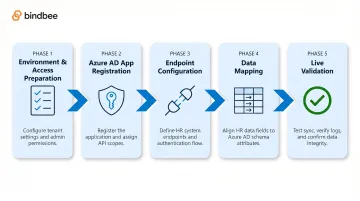
The setup process consists of five phases: environment and access preparation, Azure AD app registration, endpoint configuration, data mapping, and live validation. An IT admin or developer with Azure experience can complete this in a single day, provided prerequisites are in place.
Prerequisites and Access Requirements
Before beginning, three elements must be in place:
Azure/Entra ID tenant with admin rights — At minimum, the Application Administrator role is required. This role allows both app registration and granting tenant-wide admin consent for Dataverse permissions.
Active Dynamics 365 HR environment — The relevant HR modules must be licensed and deployed. Clear definition of which HR data objects are needed—employee records, job positions, organizational hierarchy, benefits enrollment—determines which Dataverse tables or DMF entities to target.
Dataverse integration enabled — Dataverse integration is not enabled by default. Administrators must open the Power Apps admin center, navigate to the environment's Dynamics 365 Apps section, select "App source," and install "Dual-write Human Resources" from the Microsoft Marketplace.
Non-negotiables before proceeding:
- Confirm all required HR data entities are available in Dataverse for the tenant
- Verify Dataverse sync is enabled before configuring any integration endpoints
- Treat missing entities as a blocker — partial data returns are difficult to diagnose after the fact
- If Dataverse entities are unavailable, evaluate OData or DMF as an alternative path
Required Credentials and Permissions
Once the environment is ready, collect the three values produced during app registration — these are required for every subsequent configuration step:
- Application (Client) ID — your registered app's unique identifier
- Client Secret or certificate — used to authenticate the app; certificates are preferred for production environments
- Tenant (Directory) ID — identifies your Microsoft Entra ID tenant
With credentials in hand, confirm the correct API permission scopes are assigned before connecting:
- Dataverse-based integration: requires Dynamics CRM
user_impersonationscope (delegated) or system-level service principal access (application permissions) - Microsoft Purview HR connectors: requires the Data Connector Admin role, assigned separately
- Delegated permissions: operate in the context of a signed-in user
- Application permissions (S2S): operate without a signed-in user and are governed by security roles assigned to the application user
Critical: Entra ID app registration alone does not grant data access. A Dataverse security role must also be assigned to the application user in the Power Platform admin center — missing this step causes 403 Forbidden errors.
How to Configure Microsoft HR Integration: Step-by-Step
Step 1 — Register an Application in Microsoft Entra ID
Navigate to the Microsoft Entra admin center, go to App Registrations, and create a new registration. Choose a redirect URI appropriate for the integration type (web or public client). Save the Application ID and Tenant ID before leaving the registration page.
Step 2 — Assign API Permissions
Within the registered app, add API permissions for Dynamics CRM (for Dataverse access) or the appropriate Microsoft 365 compliance APIs (for Purview HR connectors). Grant admin consent for the tenant to ensure the app can operate without per-user prompts.
After granting consent, assign a security role to the application user in the Power Platform admin center under Settings > Users + permissions > Security roles. Skip this step and authentication succeeds but authorization fails — a common source of silent integration errors.
Step 3 — Configure the Integration Endpoint
With permissions in place, identify the correct Dataverse environment URL, formatted as https://[org].api.crm.dynamics.com. Use this endpoint in the consuming application's connection configuration.
For OData service access, confirm the service root URL for the Dynamics 365 HR instance. The Dataverse Web API is an OData version 4.0 service, supporting standard query options including $select, $filter, $expand, and $orderby.
Step 4 — Map HR Data Fields to Your Target Schema
Query the Dataverse HR entities to understand available fields. Over 50 entities use the cdm_ prefix across 9 categories:
| Category | Key Entity Examples |
|---|---|
| Worker | cdm_worker, cdm_workeraddress, cdm_workerpersonaldetail |
| Organization | cdm_employment, cdm_company, cdm_jobposition |
| Compensation | cdm_compensationfixedplan, cdm_workerfixedcompensation |
| Benefits | cdm_benefitplan, cdm_benefittype, cdm_benefitoption |
| Leave and Absence | cdm_leaveplan, cdm_leaverequest |
Map source fields to your system's required fields explicitly. Watch for these field-level details:
- Data types — ensure compatibility between source and target
- Date formats — Dataverse uses ISO 8601 format (Edm.DateTimeOffset)
- ID reference fields — lookup fields return GUIDs, not human-readable values
- OptionSet fields — return integer codes by default (e.g.,
"statecode": 0)
To retrieve formatted values, include the header: Prefer: odata.include-annotations="OData.Community.Display.V1.FormattedValue".
Step 5 — Configure Sync Frequency and Change Tracking
Enable change tracking on the Dataverse tables being synced via Dataverse > Tables > Properties > Advanced options > Track Changes. Configure the consuming application to use delta queries or incremental pulls.
Submit requests with the header Prefer: odata.track-changes to receive a @odata.deltaLink containing a $deltatoken. From there:
- Subsequent requests using the token return only created, updated, or deleted records since it was issued
- Dataverse retains delta changes for approximately 7 days by default
- Tokens older than 7 days require a new full-load sync to re-establish the baseline
Set the initial full-load sync before switching to incremental to avoid missing historical records.
Post-Integration Validation Checks
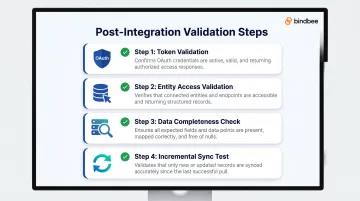
Before marking the integration production-ready, run through these four checks:
Token validation — Call
https://login.microsoftonline.com/{tenant}/oauth2/v2.0/tokenusing your registered app credentials and confirm a valid OAuth token is returned.Entity access validation — Query a known HR entity (such as a specific employee record from
cdm_workers) and verify the response matches what's visible in the Dynamics 365 HR UI.Data completeness check — Pull key entity types (workers, positions, organizational units) and confirm record counts look right. Any fields returning null likely point to missing permission scopes or misconfigured entity exposure.
Incremental sync test — Update a job title on a test employee in the source HR system, then confirm the change arrives in the consuming system within the expected sync window. If it doesn't, check your change tracking configuration and delta query implementation.
Common Microsoft HR Integration Problems and Fixes
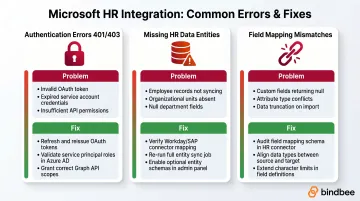
Three error types account for the majority of post-launch Microsoft HR integration failures: authentication rejections, missing data entities, and field mapping mismatches. Here's how to identify and fix each one.
Authentication Errors (401/403 Responses)
Problem: The integration returns 401 Unauthorized or 403 Forbidden errors on API calls. These errors typically trace back to one of three root causes:
- Client Secret has expired
- Admin consent was not granted for assigned API permissions
- The app is trying to access a Dynamics 365 environment it hasn't been explicitly granted access to via the Power Platform admin center
Fix:
- Verify admin consent is granted (visible as a green checkmark in the Entra portal permissions view)
- Confirm Client Secret expiry date and rotate if necessary
- Check that the service principal has been assigned a security role within the Dynamics 365 HR environment itself
- Remember: Entra registration alone does not grant Dynamics data access
Missing or Incomplete HR Data Entities
Problem: Certain HR data objects (benefits enrollment, dependent information, compensation records) return empty results even though the data exists in the HR system. Dataverse integration for those specific entities hasn't been enabled, or the required entities aren't yet surfaced in Dataverse for that environment.
Fix:
- Check the list of available HR entities in Dataverse for the specific Dynamics 365 HR version in use
- For entities not yet available, fall back to DMF/OData access, which has broader entity coverage
- Note this as a known gap to revisit as Microsoft expands Dataverse coverage
Field Mapping and Data Type Mismatches
Problem: Records sync but values appear incorrect, truncated, or null in the target system.
Likely cause: Mapping a Dataverse field of one type (for example, OptionSet/enum) to a plain text field in the target, or failing to handle lookup fields that return GUIDs rather than human-readable values.
Fix:
- Audit target field types against the Dataverse schema before finalizing mapping
- For OptionSet fields, ensure the consuming system understands the integer codes and their label equivalents
- For lookup fields, resolve the referenced entity to retrieve the readable value (for example, resolving a position ID to a position title)
- Use
$expandwith navigation properties to retrieve related entity data
Pro Tips for a Successful Microsoft HR Integration
Use Dataverse as the primary integration layer wherever available. Microsoft is actively expanding Dataverse entity coverage for HR data, and it provides cleaner OData v4 support, better pagination, and built-in change tracking compared to legacy DMF approaches. Treat DMF as a fallback only.
Document and schedule Client Secret rotation before go-live, not after. Microsoft Entra Client Secrets expire (commonly at 12 or 24 months), and an unmonitored expiry is the single most common cause of silent integration failures in production environments. Microsoft explicitly recommends certificates instead: "Microsoft recommends that you use a certificate instead of a client secret before moving the application to a production environment." Set calendar reminders or use certificate-based auth to avoid expiry-based outages.
If you're connecting Microsoft Dynamics 365 HR alongside other HRIS systems, consider a unified API layer rather than separate native integrations. Maintaining point-to-point connections to Workday, ADP, BambooHR, and others alongside Dynamics 365 HR compounds maintenance overhead fast.
A platform like Bindbee normalizes employee, benefits, and dependent data from 60+ HR systems through a single API. Most customers complete setup in under 10 minutes using Magic Link authentication, reducing the manual Azure AD app registration work required. The platform carries SOC 2 Type II, ISO 27001, and HIPAA compliance.
Conclusion
A Microsoft HR integration is only as good as its setup. Get the permissions wrong, skip entity validation, or defer change tracking configuration, and the downstream HR tech and benefits platforms it feeds will eventually reflect it — through stale records, failed syncs, or missed eligibility updates.
Once live, the integration needs ongoing attention. Three maintenance habits prevent most degradation:
- Rotate credentials on a schedule — don't wait for an auth failure to prompt you
- Review sync logs regularly — silent errors surface here before they affect data quality
- Revisit Dataverse entity availability as Microsoft expands coverage; new entities may be relevant to your data model
Skipping these steps is how a working day-one integration becomes a source of data quality complaints six months later.
Frequently Asked Questions
What is HR system integration?
HR system integration connects an HR platform (such as Dynamics 365 HR) to other software systems so that employee data—including records, positions, and benefits—flows automatically between them, with no manual exports or re-entry required.
What is Microsoft Integration Platform?
Microsoft's integration platform refers to its suite of tools including Azure Logic Apps, Power Automate, and Azure Data Factory, all of which can move data between Dynamics 365 HR, Dataverse, and third-party systems. Dataverse serves as the core HR data interface.
What HR software does Microsoft use?
Microsoft's primary HR software is Dynamics 365 Human Resources, which manages employee records, payroll, benefits, and workforce planning. Viva and Teams handle employee experience and internal communications.
How do I connect Microsoft Dynamics 365 HR to a third-party application?
The connection involves three steps:
- Register an app in Microsoft Entra ID to obtain credentials
- Assign Dataverse API permissions with admin consent
- Use the environment's Dataverse URL as the endpoint in the third-party app's integration settings
What permissions are needed to integrate with Microsoft Dynamics 365 HR?
At minimum, the registered Azure AD application needs the Dynamics CRM user_impersonation (or application-level) API permission with tenant-wide admin consent. The service principal must also be assigned a security role within the Dynamics 365 HR environment in the Power Platform admin center.